Speed Up Your Windows 7 PC Series


You know what, if you are using Windows 7, then you should be happy. You know the reason why? Ok lets get a bit of information on it!

Windows 7 the successor of Windows Vista is already designed and engineered to be much faster than that of Vista.

Windows Vista was a real resource eater, while Windows 7 is developed in such a way that it can work with least required resources, and give its best performance.

But, obviously if you are using some heavy tools, say Photoshop, or Flash or some development tools like eclipse and visual studio, then its better that you have good amount of hardware resources at its disposal, to avoid performance issues.

Location Aware Printing In Windows 7


If you routinely print to multiple printers from your laptop, Windows 7 will ease up your printing task. Rather switching among different printers when you go from, say, home to work, it will be more preferable to delegate this task to Windows 7.

With Location aware printing, whenever you print, windows 7 remembers the network and printer you're using. Next time you return to that spot, Windows automatically switches the default printer to match the one you last used. You can also manually pair printers and networks. So, now you are hassle free from managing multiple network based printers by setting up default printers based on what network you are connected to!

Free Online Diagram Making


Ever thought of making diagrams or plans or Flowcharts?

Yea but you would have faced the problem(s) of installing various software(s) on your machine. Again, they may or may not work on your operating system. And if they worked well, they may have a trial period after which you got to buy it..

How if you could make it for free? And that too Online?

Yes Friends, you read that right.... Free and Online! Here is a tool called gliffy.

Gliffy is a tool that help you to create, share and collaborate on a very wide range of diagrams.


Creative Ways To Use Google+

As a newbie to Google+, you have added lots of people in various circles, you have also setup your fabulous profile with bragging rights, education, success story, etc. But what's next? Where to from here? Beside all these primary things, there are few creative ways to use in Google+.

Get More From Your Gmail Address


A month ago I discovered 2 ways to use in Gmail address that can give greater control over inbox and save some time from managing mails! Here are two ways to modify Gmail address and still all mail will be directed to the original mail address!

Plus (“+”) addressing scheme

Gmail also allows plus addressing scheme like many other mail service providers. Append a “+” sign and any combination of words and numbers right after your mail address. Gmail will ignore everything that comes after the “+” sign and mail will be directed to your inbox!

Google Plus: Searching, Tips & Tricks On Searching

Google Plus: Searching, Tips & Tricks on searching
Google frequently rolls out new features and enhancements to Google+. It has now added new features like Real-time searching and support for hashtags (same like Twitter hashtags) to its incredibly expanding social networking site. These 2 enhancements rolled out few days ago to make searching on Google+ easier and interactive.

Real time searching

Real-time search means that as you type the search keyword or topic into the search box, you will get possible suggested topics as you type (same like google search results) as well as the live update of the search results the moment they are posted by your friends and other Google+ members.

Readability Extension


Clear away secondary content for an easier online read
Obviously Ads, Promos, Streaming sidebars will be there on web pages. But, in the end, they're often secondary to what you really care about. When you just want to settle down for a nice online long read or when you want to send a neat and clean article from webpage to your friend, wouldn't it be great to keep away those secondary things? That's just what Readability extension is there for.

I was amazed when I saw first time this extension in safari, as safari by default ships with reader extension. You might be thinking, what about other browsers? You don't need to worry, Chrome and Firefox also provide the readability extension. IE users, don't be sad, I've solution for it also.


Don't you know about "ctrl shift v" in Chrome?


It might happened, you are writing an email and want to copy some excerpt from webpage in the mail content. But when you paste the text, alas, all the source formatting like colors, spacing, font style everything also get copied!!!

This may happen to us so many times but fortunately Chrome provides a workaround to this problem alongside the simple ctrl + v keyboard shortcut for "paste", Chrome supports a similar shortcut ctrl + shift + v for "paste as plain text". (On mac os, it is cmd + shift + v).

TweetDeck: Schedule updates for social medias

TweetDeck is the most famous desktop application for Twitter. The application running on Adobe AIR updated frequently to provide new features in social media. Now, it also supports to post updates to facebook, LinkedIn, MySpace & FourSquare! It is also available for Chrome, iPhone & Android now.

The scheduled post feature is very useful for power user who strives to be active on social medias even when he/she is busy with routine working. You can schedule out tweets or posts for facebook friends from TweetDeck, to wish them on birthday, anniversary, etc.

So, how to schedule updates in TweetDeck? Here is the answer :-)


Gmail - Keyboard Shortcuts


Gmail can perform much like, a desktop software, provides bunch of keyboard shortcuts to save time. These small combination of keystrokes can be a real productivity booster and help you to avoid having to move your hand from keyboard to mouse as frequently. Here are some of the most useful and time saving keyboard shortcuts that helps to increase your efficiency when using Google mail.

Activating Gmail keyboard shortcuts
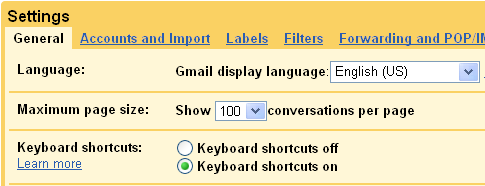
To turn on/off keyboard shortcuts, click the gear icon  from the top right corner and then click Mail Settings. Choose the option next to "Keyboard shortcuts" to turn them on. You can also enable shortcuts automatically by entering this URL http://mail.google.com/mail/?kbd=1 while you are logged-in in gmail.
Here, Gmail Keyboard shortcuts have been grouped by functionality, to clarify and distinguish them among different set of operations like navigation, selection, management and general.

Windows - Portable Applications suite

Portable Application (also known as Portable Apps) is a light weight computer software, that can be installed on removable devices like pen drive, memory card, USB Hard disks, etc. Programs in this category are typically 'lite' versions of their parent software.

You can carry all your favorite software, bookmarks, settings, emails and many more on your removable devices. PortableApps.com is popular portable software solution that allows you to take all your favorite software with you. 

Use Gmail offline on your laptop

Google gives access to vast collection of apps on chrome web store to chrome users. Few days back, I found Offline Google mail app for chrome web browser that makes very simple to take all your mails on the go without staying connected to the internet!


You might be thinking of other options available for the same, like mail clients (Microsoft outlook, Mozilla Thunderbird, Apple Mail, etc), but they are too much bulkier on your system and can suck up a ton of space on your computer.

QR Code

Simple QR Code image
QR Code stands for Quick Response Code. It is used to encode some sort of information like name, url, web address, email address, etc.

It is a 2 dimensional code that can be read by smart phones. To read a qr code, your cell phone needs a camera and an application to read it. You can find varieties of qr code readers from various appstores for different smartphone manufacturers. Once your qr code reader application reads the detail you can store it to your phone.

How To Hide Hard Disk In Windows

Hard disk image
Photo Credits: Eric Gaba
Sometimes we prefer to hide our hard disk drive to be listed in My Computer. It's a good idea to store all your personal data in any single partition of hard disk and then hide that partition. Although, hiding this way won't stop the smart computer users to access those hidden partitions. But still this works for general users and children.

Hiding hard disk partition in Windows requires a minor tweak into the registry keys. Follow the below easy steps to hide your hard partition.

  • Open Run menu
  • Type gpedit.msc in Run menu and click OK. It will open up Group Policy window.
  • Navigate to the following template in the Local Group Policy Editor:
User Configuration > Administrative Templates > Windows Component > Windows Explorer
  • Locate the template Hide these specified drives in My Computer and double-click it.
Navigate to User Configuration > Administrative Templates > Windows Component > Windows Explorer
Double click on "Hide these specified drives in My Computer" template
  • Select Enabled from Not Configured and select the combinations from drop down menu to hide the partition(s).
Select Enabled option and pick the drive you want to hide
Select "Enabled" and Drive Combinations to hide
Restart the system to see the changes you have made. At anytime, you can revert these changes by disabling settings in the Group Policy Editor.

Data Validation in Excel

Microsoft Excel is outstanding software for numerical data processing. It provides numerous mathematical and scientific functions. Many times we create a worksheet to collect data from others; at such times ensuring valid data entry is an important task. You may want to restrict data entry to a certain range of numeric values, date within time-frame, text of a specified length, etc. Applying data validation on worksheet will help to instruct users and clear messages when invalid data is entered.

To keep it simple, I've created a very simple example that limits salesperson's bonus to 10% of his salary. If payroll manager mistakenly enters bonus more than 10% of salesperson's salary then he will be notified with an error message. You can download sample excel sheet to perform this example from Google Docs.

Greenshot - Enhance Your Screen Capturing


Print screen (Alt + Print screen, too) is always boring task in windows XP, you've to instantly paste your screenshot image to either word document file or Microsoft paint to save it.Windows XP also lacks region screen capturing facility.

We can get rid off this problem. There are so many software available but some of them are paid tools. Greenshot is a free screen capturing tool. It is quite good and useful for those who are doing screen capturing for their daily documentation work.

Let's explore the features available in Greenshot.

CCleaner - Optimize and Clean Your Windows PC


CCleaner, one of the best available tool, automatically removes all unwanted temporary internet files from you computer. This way you could reclaim some hard-disk space by clearing out all those scrap using CCleaner tool. It also offers Registry Cleaner and Software Uninstaller and some more advanced features like secure file deletion etc.

Lets get a closer look at CCleaner.


1. Cleaner Tab [Home Screen]

The cleaner tab allows you to choose the options on which you wish to perform automatic cleaning operations. The windows tab under the Cleaner tab lists all of the built-in softwares and tools in the Windows. While Applications tab allows you to select options for third party tools or softwares like Google Chrome, Mozilla Firefox, etc.
CCleaner Home Screen
Once you are done with the selection options. Hit Run Cleaner button to start cleaning your computer. You will presented a Summary Results when CCleaner completes the cleaning operation.

Have you seen, it reclaimed 18 MB by removing those temporary junk files from my computer?


How To Setup Google Chrome Sync

Google Chrome Sync saves all your bookmarks, tabs, history, and other browser preferences to your Google account when you sign-in with your Google credentials in to the Chrome browser. You can then load the same settings, bookmarks and everything you synced with Chrome on other computer and devices.

It might happen that you've saved some bookmarks at your office and you need the same at home. Before the Sync option available, I used to store important bookmarks in a draft mail on my Gmail account for access anywhere purpose!

But now, you can easily sync and save bookmarks, extensions, apps, theme, and browser preferences to your Google Account so that they are available no matter what computer or device you’re using. That way, you can have the same web experience everywhere.

Check this introductory video by +Google Chrome.